macOS · Ableton Live 11 & 12
StitchAble User Manual
Your finished songs → one gapless, show-ready setlist. Everything the app does, and why.
Section 01
Getting started
StitchAble is a macOS app that stitches your individual worship and band songs into a single, gapless Ableton Live set, ready for playback. It works with MultiTracks downloads and with songs you have already built in Ableton, and it can output for Live 11 or Live 12.
The whole point is to get you from a folder of songs to a playable set in about a minute. Here is the short path.
- Install it. Open the DMG, drag StitchAble into Applications, and launch it. A guide voice and the click sounds install themselves on first launch, so there is no setup step.
- Direct StitchAble at your songs. It scans and lists what it finds, reading each song's title, artist, key, BPM, and time signature from the best-named folder, or from the
.als filename.
- Drag songs into the running order on the right, in the order you will play them. Reorder any time by dragging.
- Set each song's options: a transpose if you need a key change, and the transition into the previous song.
- Preview a transition with the play button to hear the seam before you commit.
- Build. StitchAble produces a single Live set, optionally a full Ableton project, that opens natively in your chosen version of Live.
What your songs can look like
As of 1.0.3 the scan is far more forgiving, so you do not have to reorganize anything to get started.
StitchAble finds your songs whether each one is:
- a song folder with an Ableton project inside, the standard layout;
- a single song folder you point at directly;
- a loose
.als file; or
- a flat folder of
.als files, one per song.
Key, BPM, and time signature are read from the best-named folder, and failing that from the
.als filename. If you choose a folder with no Ableton projects in it at all, StitchAble now
says so, "No Ableton projects (.als) found," rather than showing you an empty list and leaving you to
guess.
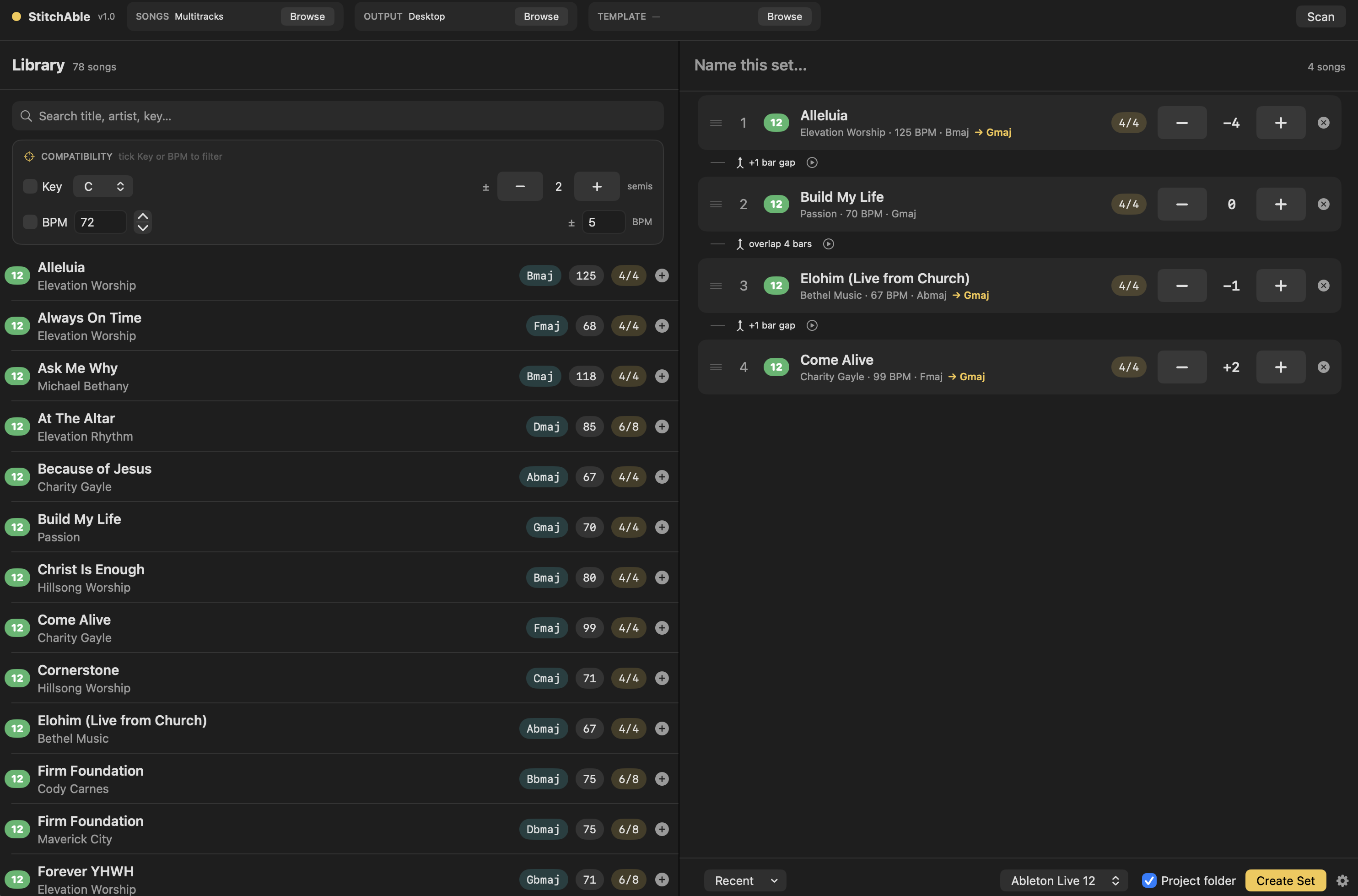 The StitchAble window: your scanned library on one side, your running order on the other.
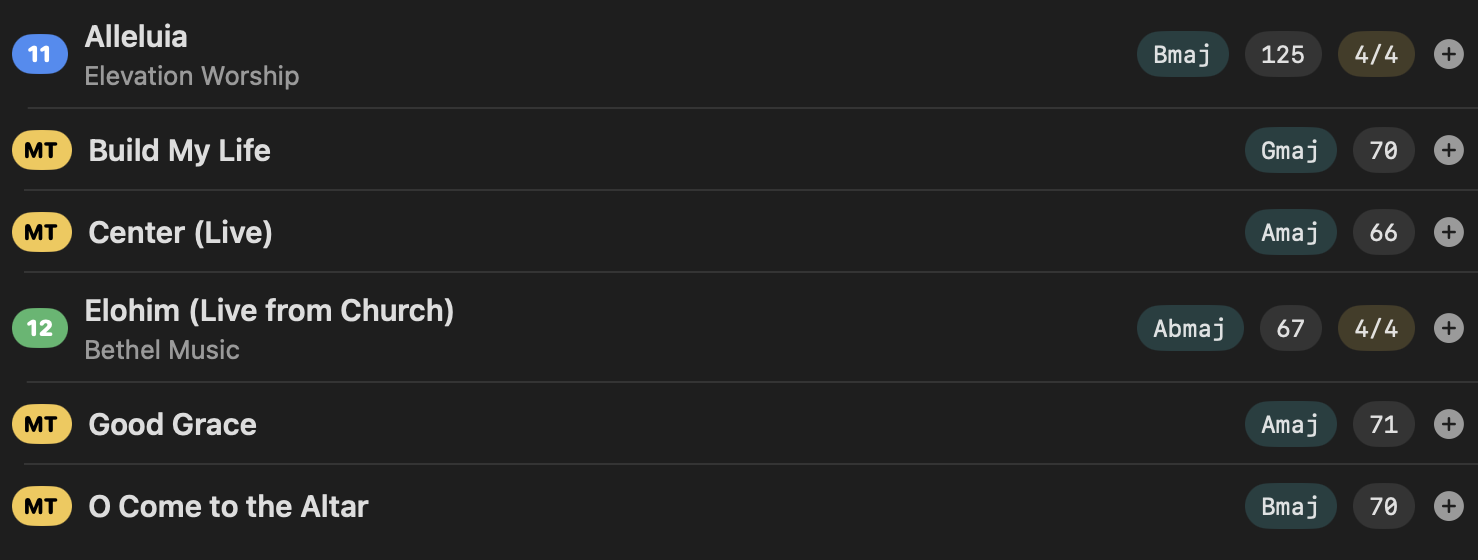 Your library after scanning, with title, artist, BPM, key, and time signature read from each song's folder.
 Hit Build when your order is ready.
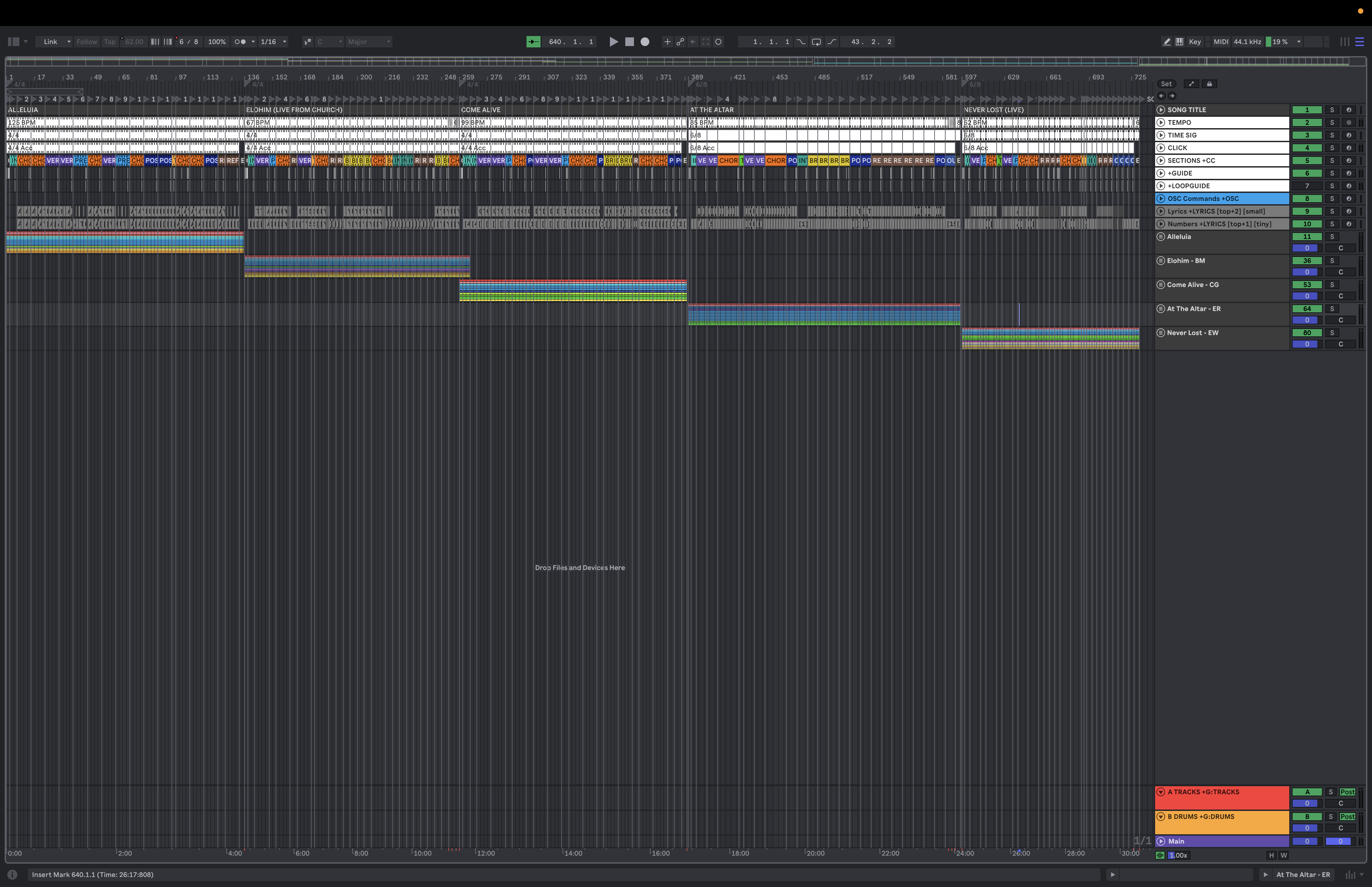 The result: your whole set merged end to end, open natively in Ableton Live.
Why it works this way. StitchAble reads everything it needs from your folder structure, so there is nothing to tag or import by hand. Name your folders well once, and the app does the rest every week. It never modifies your original songs.
Section 02
The running order
Your set lives in the running order. Each song is a row, and between every two songs sits a transition control.
A song row shows its number, title, artist with BPM and key, a time-signature pill, a transpose stepper with the resulting key, and a remove button. Drag rows to reorder them.
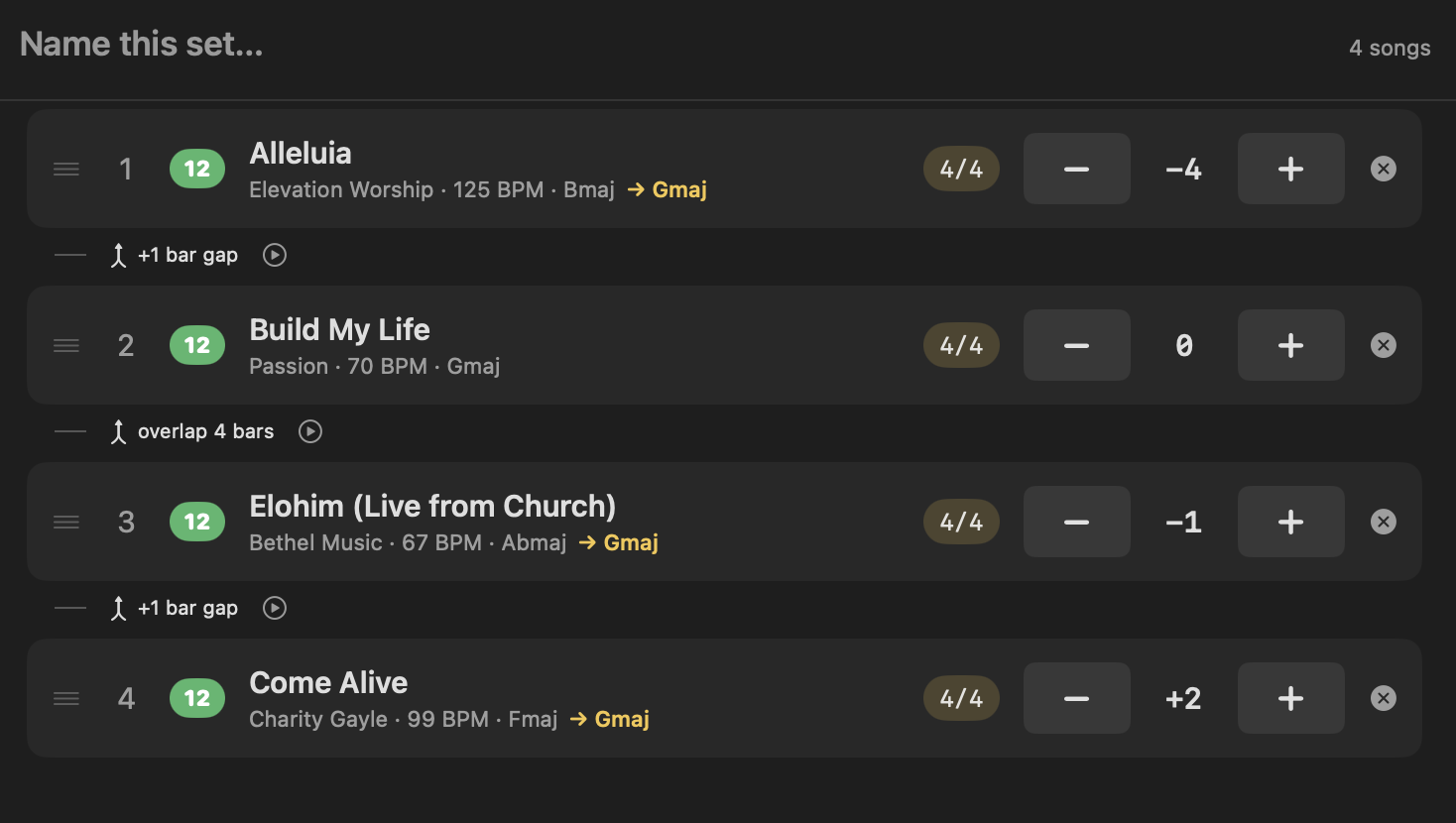 A built running order, with a transition control between each pair of songs.
 One row: number, title, artist, BPM, key, time-signature pill, transpose stepper, and remove button.
Setting a key by hand
When a song's name does not carry its key, the row lets you set one yourself, new in 1.0.3. Do that and
the key display and transpose-to-key both work for that song like any other.
Why: everything about a song, its place in the set, its key, and how it joins its neighbors, is visible and adjustable from the row itself. No digging through menus.
Section 03
Song transitions
The control between two songs sets how the next song joins the previous one. Click it to choose.
- Gap (default, 1 bar): an N-bar gap between the songs.
- Gapless (AutoLink): the next song starts exactly where the previous song ends.
- Overlap by N bars (1 to 8): the next song starts N bars before the previous song ends, so they overlap. The count is measured in the outgoing song's bars, so a 2-bar overlap means the previous song's last two bars play underneath the incoming song. Both songs play through the overlap at their own natural tempo, and nothing is time-stretched.
If the two songs use different time signatures, the boundary notes the meter change.
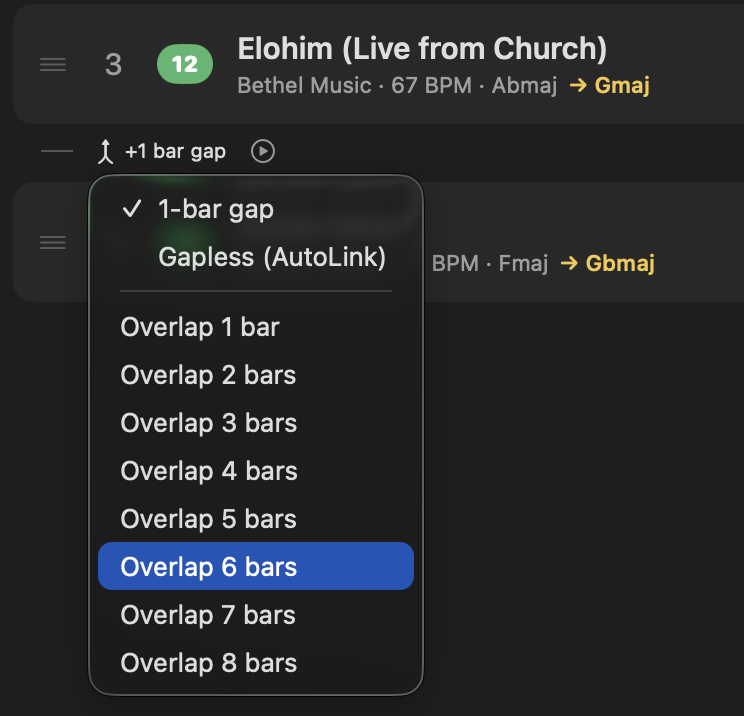 The transition control, showing the choice between a gap, gapless, and an overlap.
 Gapless (AutoLink): the next song begins the instant the previous one ends.
 An overlap, set here in the outgoing song's bars.
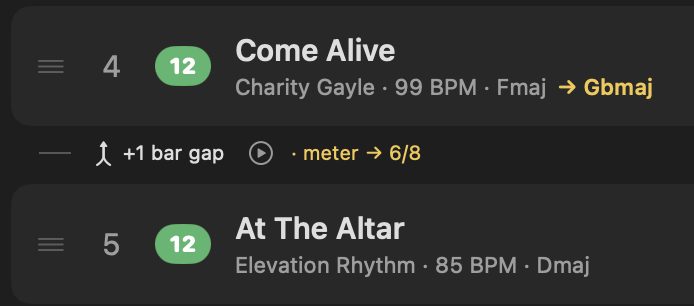 When two songs differ in meter, the boundary marks the time-signature change.
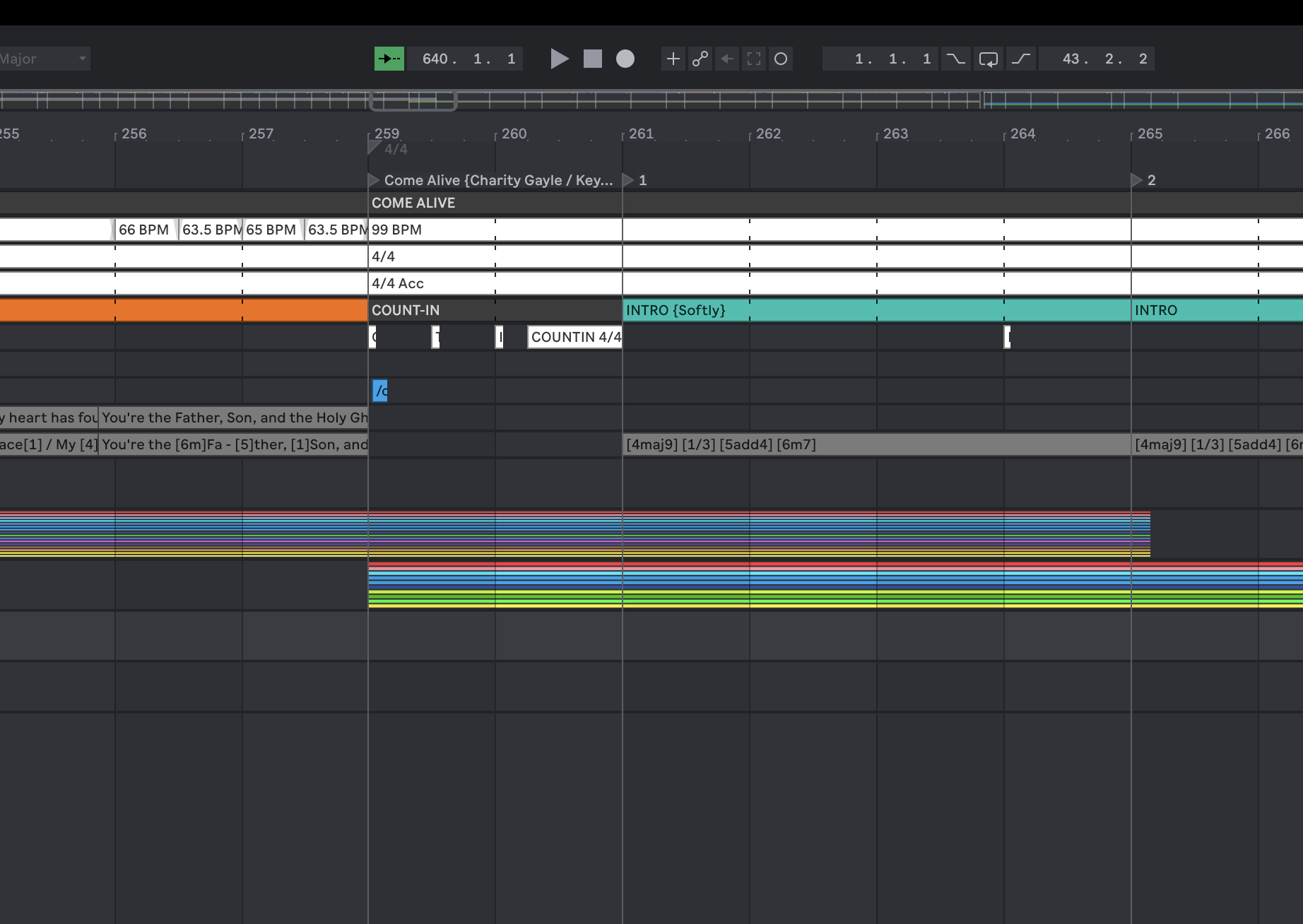 An overlap in the built set: the outgoing song's final bars sit under the incoming song, each at its own tempo.
What hands off, and when. Through an overlap the grid, meaning
tempo, meter, click, guide, and section markers, hands over to the incoming song at its downbeat. Content
cues such as lyrics, numbers, OSC, and lighting carry on from the outgoing song until the new one places
its own.
Why measured in the outgoing song's bars: when you picture a set, you feel the current song ending, so the overlap is easiest to reason about as the last two bars of the song you are in now.
Section 04
Transition preview
Next to each transition is a play button that lets you hear the seam without building the whole set.
- Click the play button beside a transition.
- StitchAble prepares the preview, shown by a brief loading spinner.
- It plays a few seconds of the outgoing song's tail meeting the incoming song's start, honoring the transition you chose and each song's transpose, with the count-in aligned to the real build.
- Click again to stop.
The preview is a dry monitor of the songs' stems, with no click, guide, or effects, which is exactly enough to judge timing, key, and how the overlap feels.
 The play button sits beside each transition.
 A spinner shows while the preview is being prepared.
 While it plays, tap again to stop.
Why: building the whole set to test one seam is slow. The preview answers does this transition feel right in a couple of seconds.
Section 05
Transpose
Any song can be transposed up or down by up to 12 semitones. StitchAble uses an AUPitch-style pitch shift that changes pitch only, so timing is preserved and just the key moves.
- Use the transpose stepper on the song's row.
- Read the resulting key shown right beside the stepper.
Songs that change key mid-song are handled, with both the start and end keys shown, for example Ab→A.
 The transpose stepper, with the resulting key shown as you change it.
 A song that changes key mid-song shows both keys.
Transposing across an overlap. When a transposed song overlaps
its neighbor, StitchAble switches to the pitch-shifting plugin method automatically, so the two songs
playing at once stay in time with each other.
Why pitch-only: your tempo map and timing stay exactly as recorded. You get the new key without warping the feel of the song.
Section 06
Click
StitchAble gives the whole set one unified click. Each song's own click pattern is preserved and mapped onto the set's shared click drum rack, so the click stays consistent from song to song no matter where each song came from.
The grid supports downbeat, quarter, eighth, and sixteenth, and the sixteenth-note click plays by default. You can mute individual click pads in Settings.
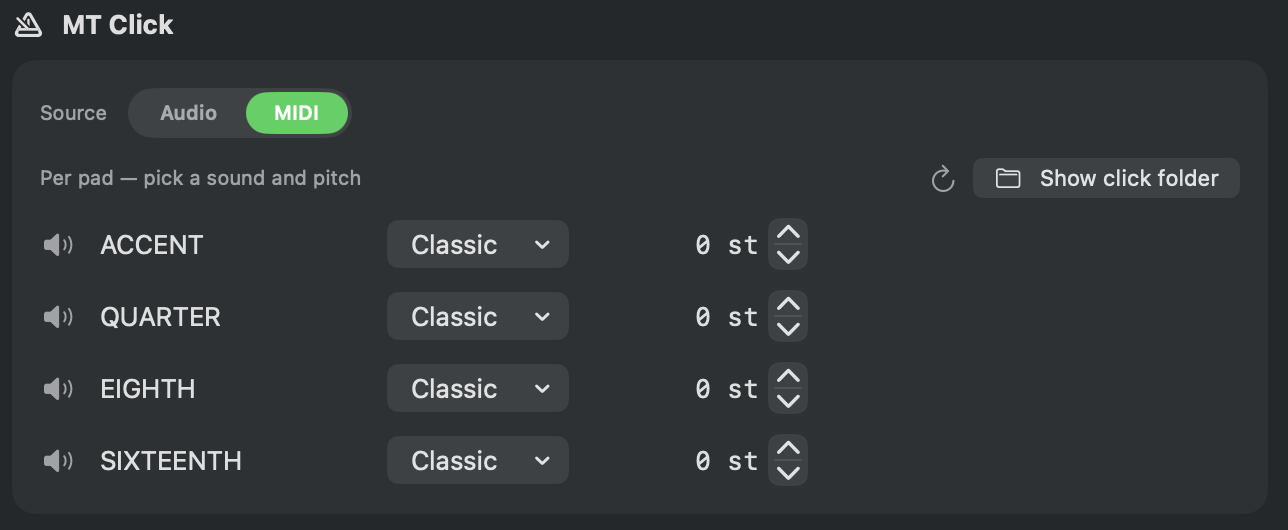 The click grid: downbeat, quarter, eighth, and sixteenth, with the sixteenth on by default.
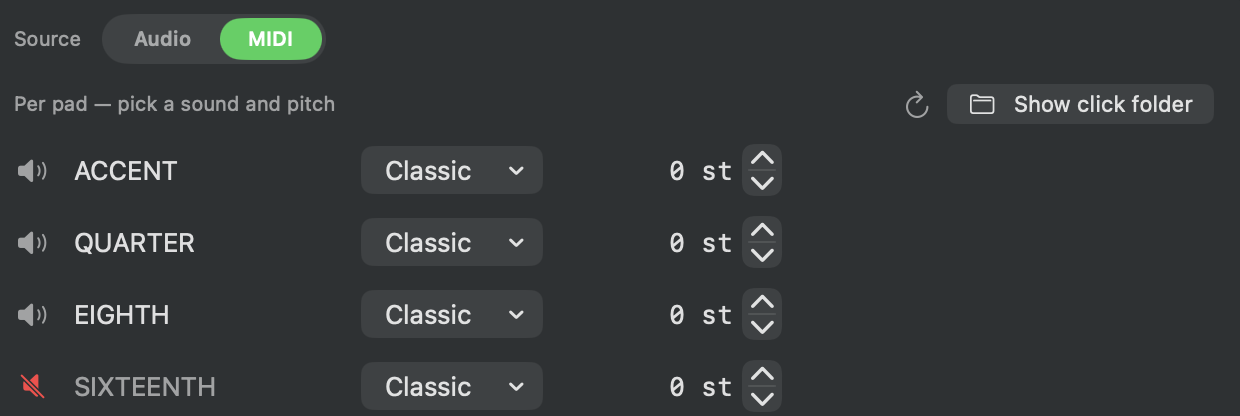 Any click pad can be muted.
Why one shared rack: a set built from many sources can end up with clicks that feel different song to song. Mapping them onto one rack makes the click feel like one instrument all night.
Section 07
Guide
StitchAble also gives the set one unified guide lane for spoken section cues, like Verse and Chorus. The guide instrument is pinned to a single consistent layout, so every song's cues map to the same notes and the guide is easy to maintain in one place.
- Choose a guide voice or family in Settings.
- Use the per-pad cue library to set your section cues.
- Reorder the guide rack as you like.
A guide voice and the click sounds install with the app on first launch, so there is nothing to
download before your first set. Switch voice or family in Settings, or bring in more with
Add Pack…, including the MultiTracks samples or your own recordings.
A missing cue stays quiet. If a cue has no recording in the voice you
picked, StitchAble leaves it silent rather than speaking a different section, so the guide never announces
something misleading.
 Choose a guide voice or family in Settings.
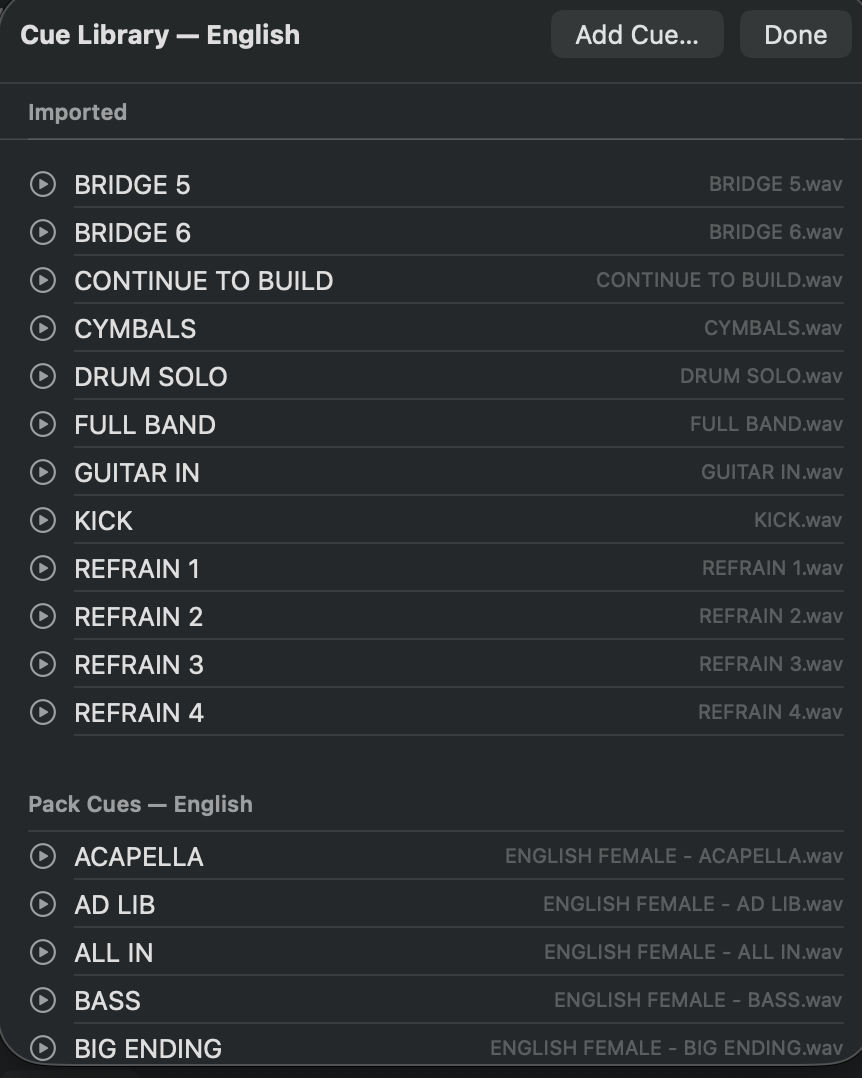 The per-pad cue library of section cues.
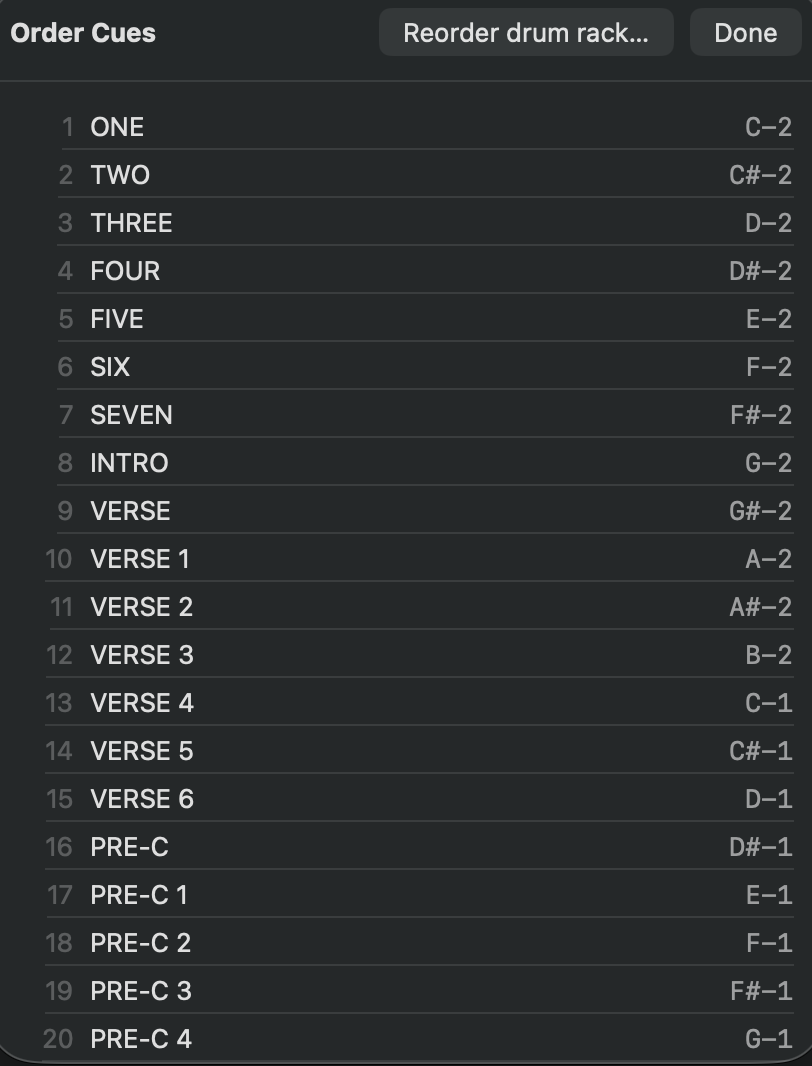 The guide rack, which you can reorder.
Why one layout: when every song's cues live on the same notes, you maintain the guide once instead of relearning it per song.
Section 08
Control track lanes review
Some lanes merge into one across your whole set instead of staying one per song. This
window lists those lanes, whatever they happen to be in your songs, and shows you before you build whether
they actually will merge. New in 1.0.4.
Open it with the ▦ button next to Create Set. It lists every merging lane across
the songs in your running order, in a window you can resize.
Reading it
- Lanes match by name and by type. An audio lane and a MIDI lane of the same name are
two different lanes and will never merge. That is expected, not a fault, so seeing both listed separately
is correct.
- The number strip beside each lane, 1 2 3 and so on, is one number per song in your
set. A number is green when that lane exists in that song and dim when
it is missing. All green means the lane merges into one across the whole set.
- Possible typo. When one song spells a lane differently from the others, StitchAble
flags it. That single character is the reason a lane would otherwise arrive in your set as two.
Fixing a mismatch
- Rename the odd lane inline, right in the review window, so it matches the others.
- Click Apply Renames.
- Build. The lanes now merge into one.
This one writes to your song files. Applying renames edits the songs
themselves, which is the only way the change survives into the build. The originals are kept alongside as
.bak files, so nothing is lost.
The warning on the main window
The ▦ button flashes a red warning when there is a naming mismatch it can fix. If
it is not flashing, your lanes already line up and there is nothing to do here.
Section 09
Outputs and returns
StitchAble routes the set's audio sensibly. Stems go into their song group, and click and guide go to their own outputs, which you can configure.
When songs bring their own effect returns, StitchAble reconciles them so the merged set keeps each song's sends and returns intact.
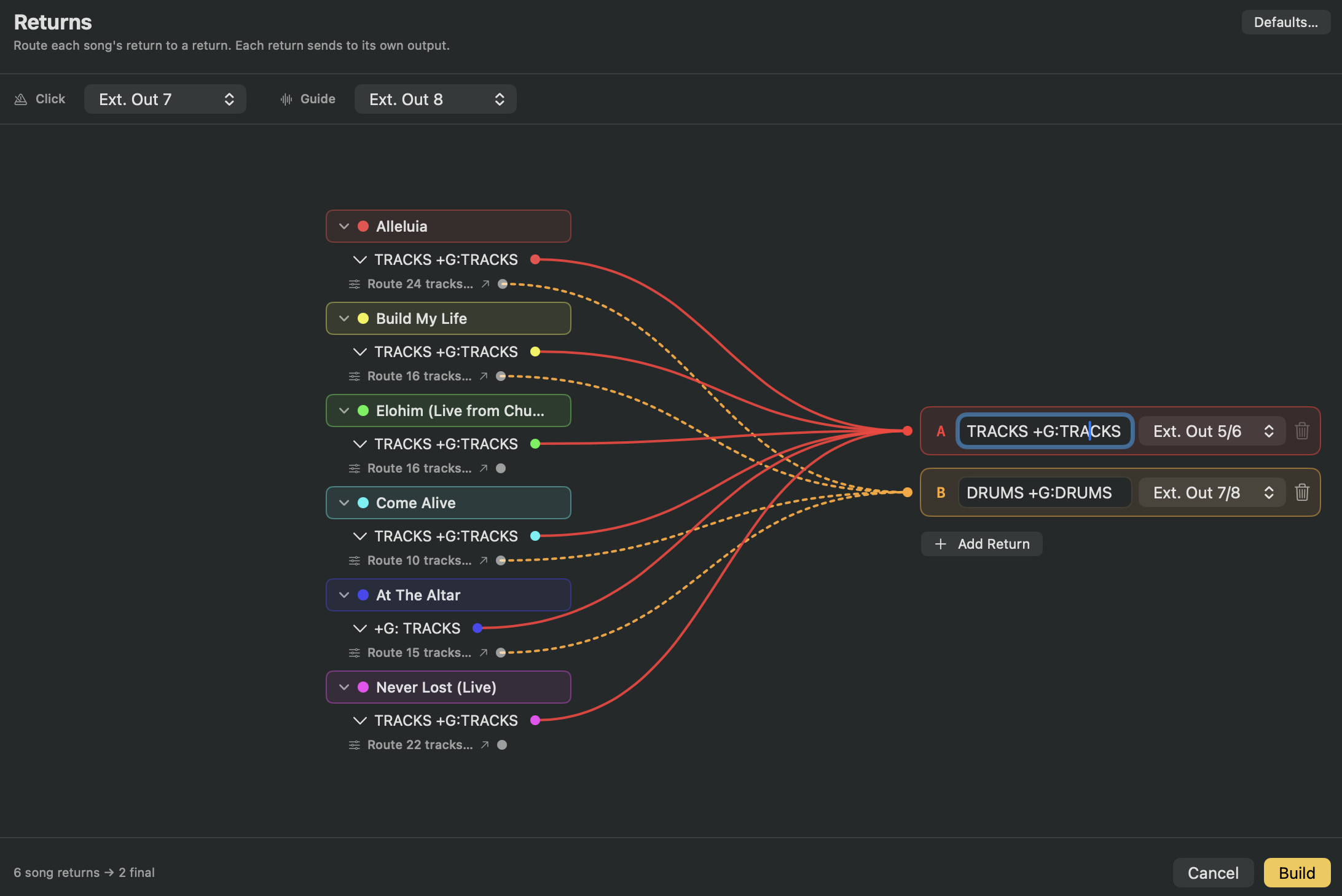 Routing overview: stems into their song group, with click and guide on their own outputs.
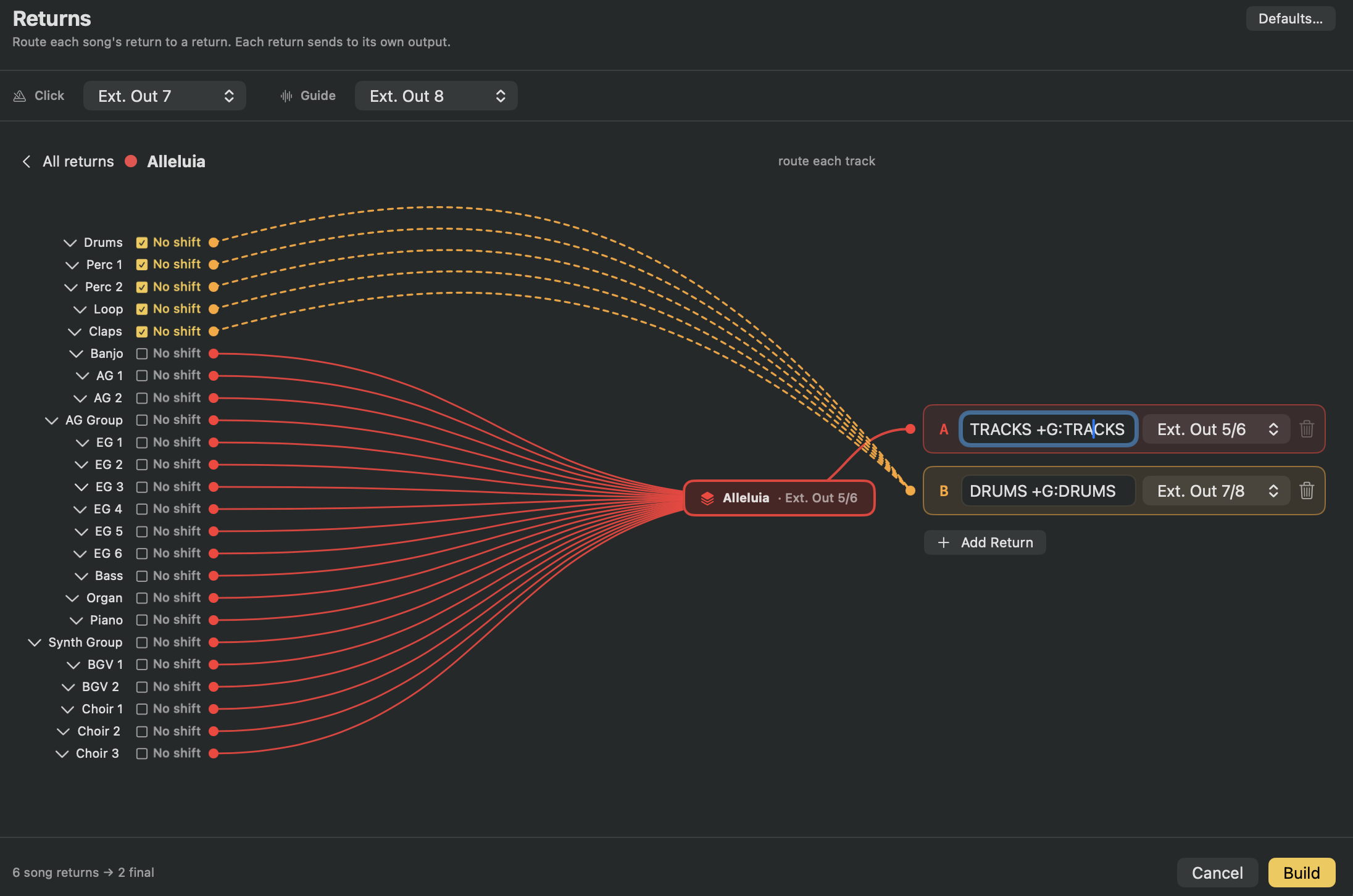 The per-song tracks and returns section, where each song's sends and returns are preserved.
Why reconcile returns: two songs can define the same return differently. StitchAble sorts that out during the merge so nothing collides and every song still sounds the way it did on its own.
Section 10
Live 11 or Live 12
Choose your target Live version, and the set opens natively in Live 11 or Live 12, with the format differences handled automatically.
MultiTracks and older songs are converted for you; Live 12 songs are used directly.
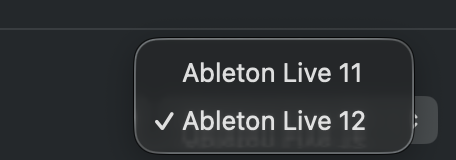 Pick Live 11 or Live 12 as your output target.
Why it matters: build for the version you actually run on stage, and the set opens clean with no conversion prompts in front of your congregation.
Section 11
Recent sets
StitchAble remembers your recent sets. Reopen a recent running order from the Recent menu instead of rebuilding it by hand.
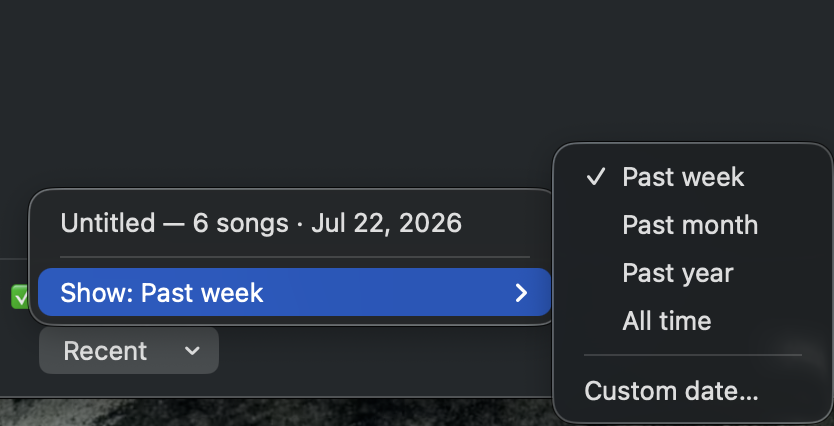 The Recent menu, for jumping back into a set you built before.
Why: many sets repeat week to week. Reopening beats rebuilding.
Section 12
Fix folder name
If a song's folder name has a typo, such as a mis-spelled key, that would confuse the merge, use the per-song Fix folder name action. It safely corrects the folder on disk and re-points that song's samples.
- Find the flagged song in your library.
- Use its Fix folder name action.
- StitchAble corrects the folder and relinks the samples for you.
 A song flagged for a folder-name issue, with the Fix folder name action.
There is also a Rename all, which canonicalizes every non-standard folder in one pass.
Why on disk: the folder name is where StitchAble reads a song's key and meter, so correcting the name at the source fixes the problem everywhere at once.
Section 13
Settings
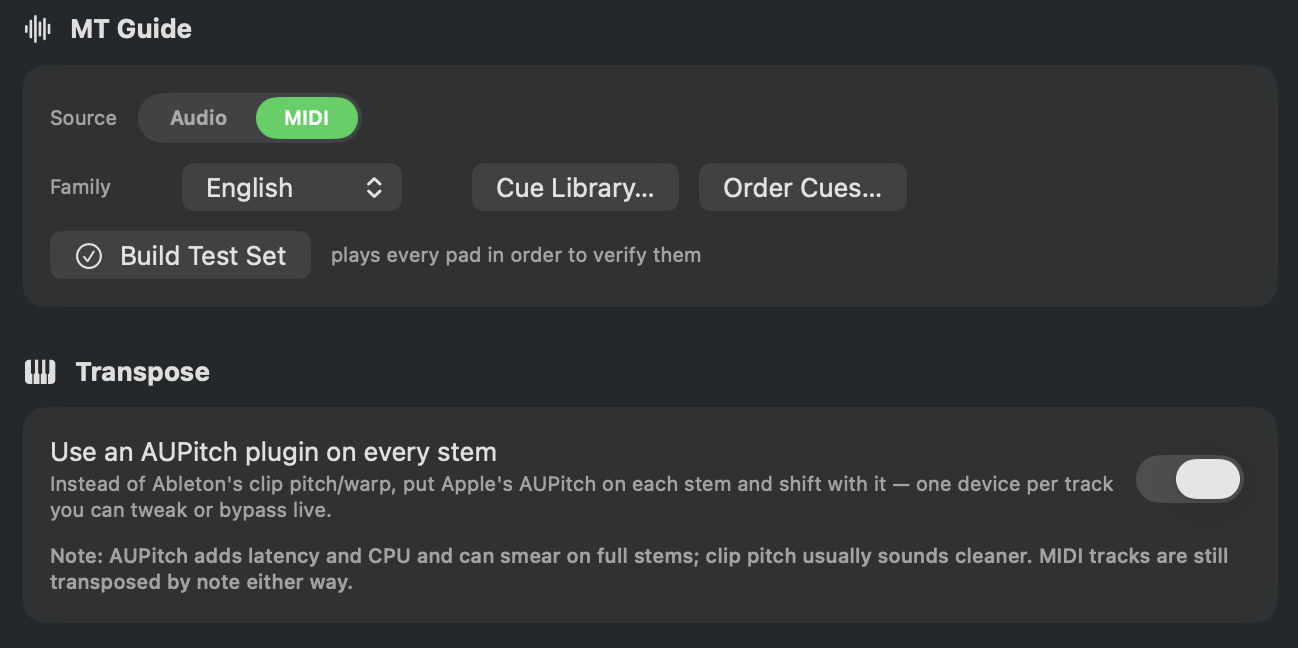
Settings is where you set up the pieces the whole set shares: the guide voice or family, the per-pad click family and mutes, the order of the click and guide racks, the guide and click source (audio or MIDI), Add Pack… for extra guide and click packs, and output routing. It opens instantly.
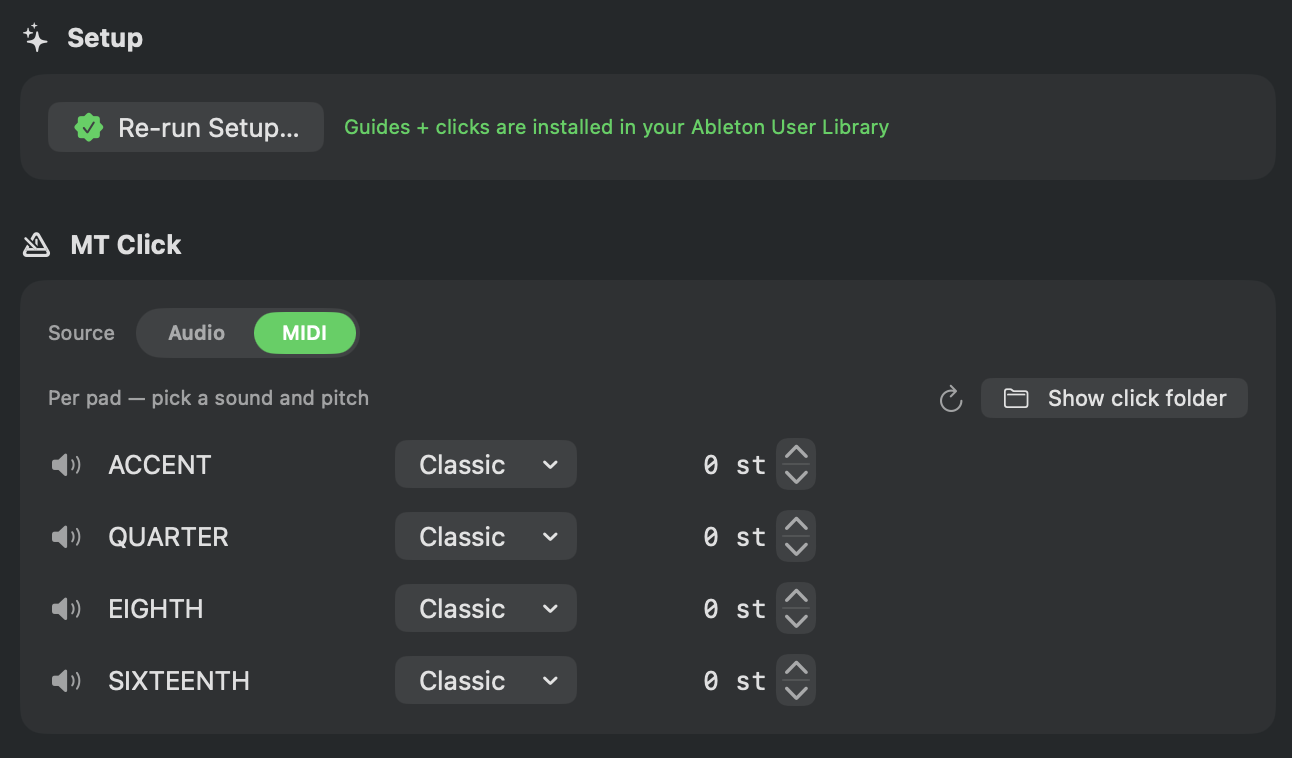 Settings: guide and click setup.
 Settings: rack ordering and sound-pack setup.
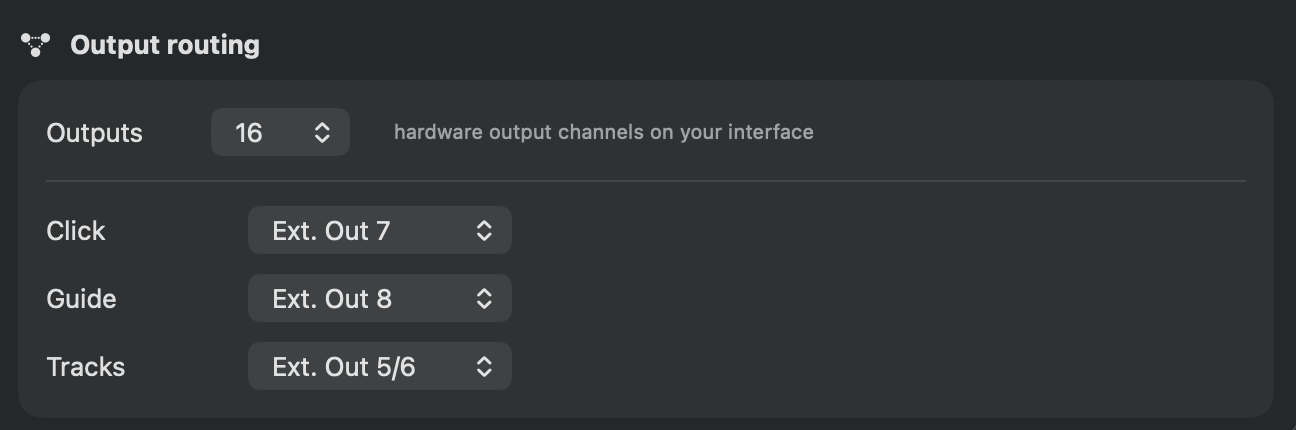 Settings: output routing.
Section 14
Trial and activation
StitchAble is free to download and build with. The trial is the whole app, not a crippled
version: every feature works, and the only limit is size.
- Build up to 10 sets.
- Up to 3 songs in each set.
- Everything else is unrestricted, including transitions, preview, transpose, click, guide, and Live 11 or 12 output.
When you are ready, buy a license and you get a key on your receipt.
- Paste the key into the activation screen.
- Press Activate. That is one online check on this Mac.
- After that StitchAble runs fully offline, with the caps lifted in the app you already have.
Nothing to reinstall. The key unlocks the copy you have been using,
so the sets you built during the trial stay exactly where they are. Each purchase includes 5 activations, and
if you are moving to a new Mac or need more seats, email hello@danspace.app.
Section 15
Compatibility
StitchAble works with MultiTracks stem downloads and with Ableton-authored song projects, so your library can mix both.
It outputs a single gapless Live set, optionally a full Ableton project. The app is a macOS app, Developer-ID signed and Apple-notarized, so it opens with a normal double-click.
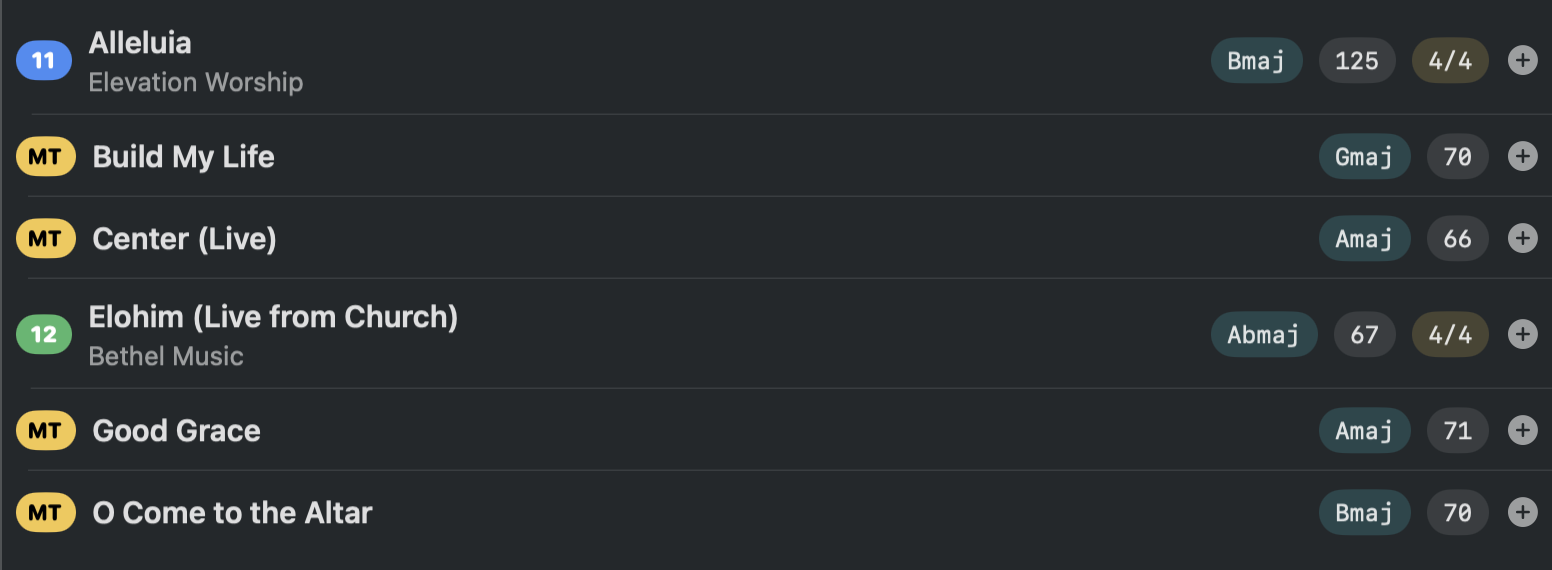 A MultiTracks download and an Ableton-authored song living side by side in the library.
Section 16
Tips
- Preview before you build. A two-second listen at each seam catches an awkward overlap or a wrong-key entrance before you ever open Live.
- Choose overlap length by feel. Two bars is a gentle wash between songs; more bars make a longer, more deliberate blend. Remember the count is in the outgoing song's bars.
- Transpose to build a set that flows. Small moves keep singers comfortable and let neighboring songs share a key without warping anything.
- Set your guide voice once. Choose the family you want in Settings and every set you build uses it, so this is a one-time decision unless your team changes languages.
Section 17
Troubleshooting
The usual snags and the fix for each.
The guide is silent, or one cue does not speak
Check that a guide voice is selected in Settings. A cue with no recording in that voice is left silent on purpose; add the pack that contains it with Add Pack…, or switch to a voice that includes it.
A count-in number says the wrong thing
Rebuild the set on 1.0.1 or later. Count-in number cues are matched to your installed voice automatically from that version on.
A song's media is offline
Use that song's Fix folder name action to correct the folder and relink its samples. This is the usual cause when a song will not play or shows missing media.
A control track lane arrived in the set as two lanes
One song spells it differently. Open the ▦ review next to Create Set, rename the odd one inline, and click Apply Renames. An audio lane and a MIDI lane of the same name are a separate case and never merge, which is expected.
A song plays at the previous song's tempo
Rebuild on 1.0.4 or later. Tempo and meter now hand off cleanly at each song boundary.
Live crashes when opening a merged set
Rebuild on 1.0.4 or later. Sets merged from songs in different sessions no longer leave behind the references that caused this.
The folder you chose showed nothing
StitchAble now tells you when a folder holds no Ableton projects. It reads song folders, single folders, loose .als files, and flat folders of .als files, so if it found nothing there genuinely are no projects in there.
The set opened in the wrong version of Live
Check the Live version target before building and pick the version you run on stage. A Live 12 file will not open in Live 11.
Still stuck? Email hello@danspace.app. Tell me what the set was made of (Live 11, Live 12, MultiTracks) and what you had chosen in Settings, and that is usually enough to find it.