MultiTracks gives you a Live 8 file and a folder of stems. BuildAble 12 gives you back a complete Live 12 song. Click, spoken guide cues, section markers, lyrics, routing, OSC, laid into your AbleSet template and ready to play on Sunday. Or skip the download entirely and build from a plain folder of stems.
Not a starting point. A finished song.
5 full conversions free · macOS 14.6+ · signed & notarized by Apple
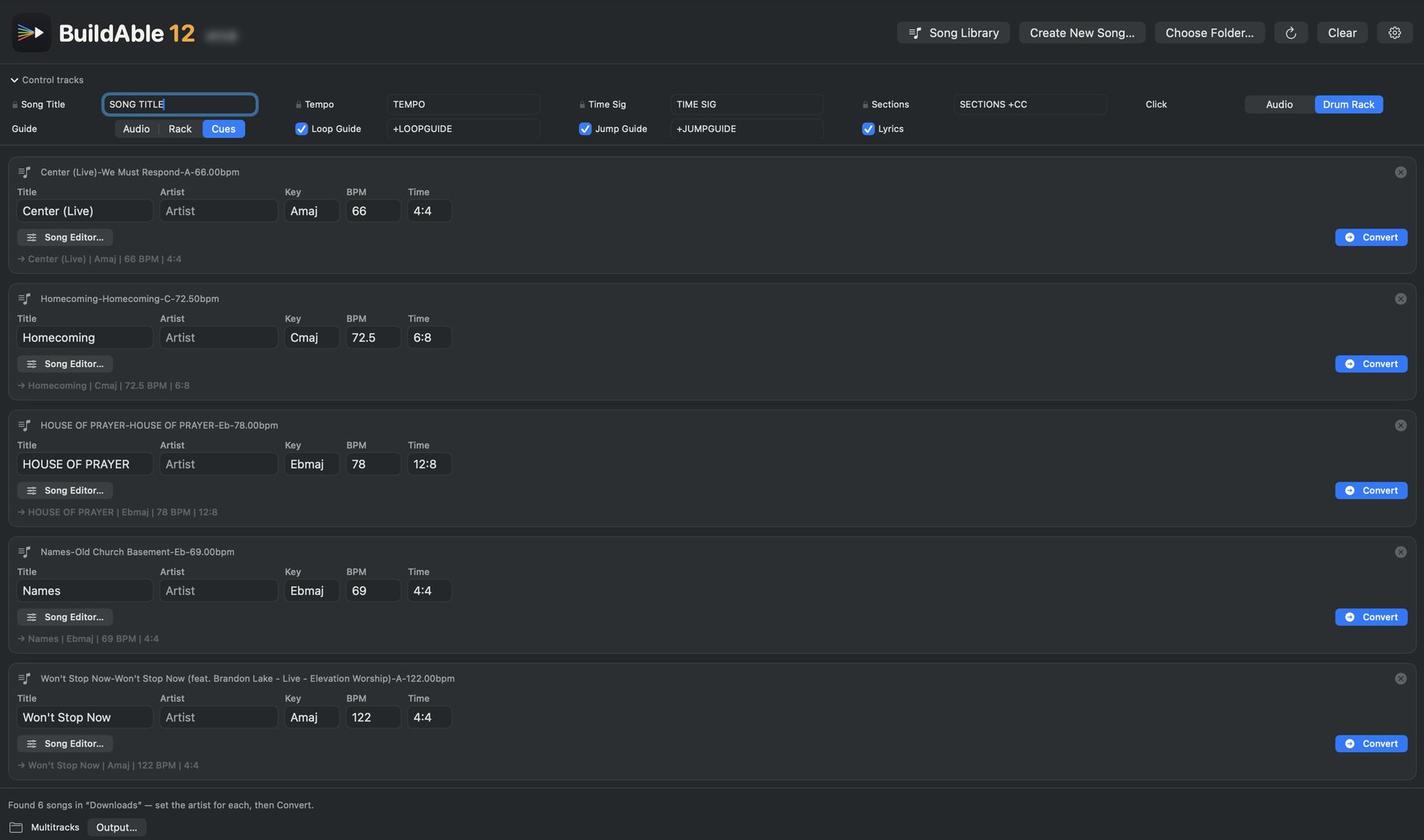
Direct it at a folder of downloads, or a folder of stems. Convert the whole Sunday in one pass.
A MultiTracks session is one way in. The other is a plain folder of audio. Choose Create New Song, direct it at your stems, and lay the arrangement out yourself on a tempo-aware timeline that plays every stem together while you work.
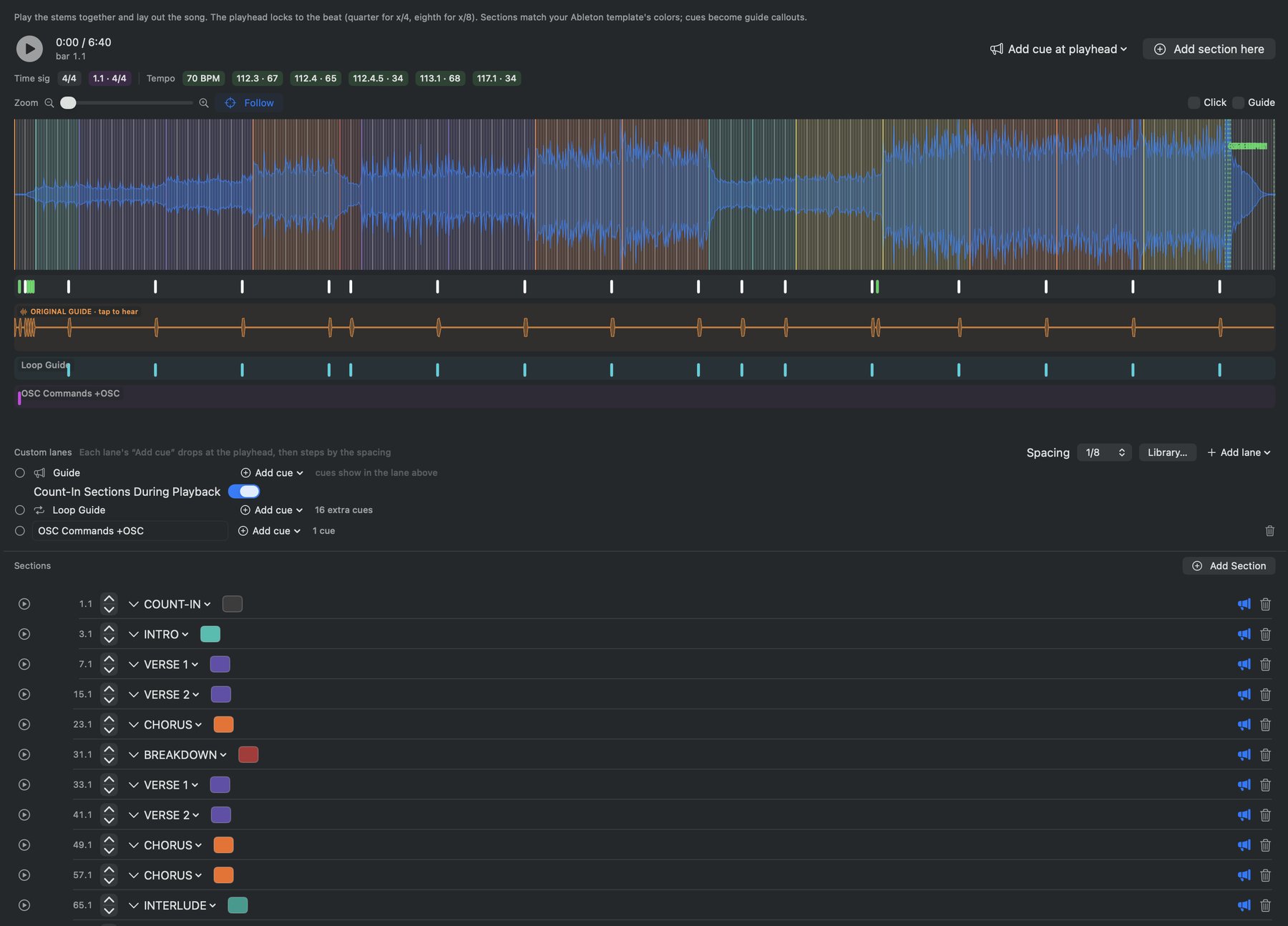
Play it, scrub it, and drop the arrangement in at the playhead
Drop a marker at the playhead while the song plays. Name it from the standard list or type your own, in Ableton's own clip colors, so what you see is what opens in Live.
Section callouts land a bar early, performance cues go where you put them. Ticks under the waveform you can drag, colored by how certain the match is.
Import a click and it builds the tempo map from the hits. Follow every hit, or normalize to one steady BPM and warp the stems to match, per track.
Count-in, meter changes, and guide import too.
A MultiTracks download is built to be compatible with everything, which means it arrives with almost nothing. Here's the gap BuildAble closes.
The guide lane is built in three layers. The count-in and the section cues come from things the song knows, its meter and its locators, so they can't be wrong.
The performance cues build, drums in, all in, hits, are found by listening to your song's own guide stem: matched against the cue recordings by audio fingerprint, and transcribed by on-device speech.
What lands on the lane is what the guide actually says. Anything it hears but can't name is handed to you to label, and once you label it, it recognizes it forever.
You choose how hard it listens: audio matching alone, Apple Speech on device, or Whisper when you want the extra accuracy.
The guide itself is one Live-authored 128-pad rack repointed at your family, so every callout plays in full and lands on the pad it's supposed to. Or hand the job to AbleSet's own Cues plugin instead, with Cues mode.
Nothing leaves your Mac.
Every cue found and placed, on the timeline, against the audio
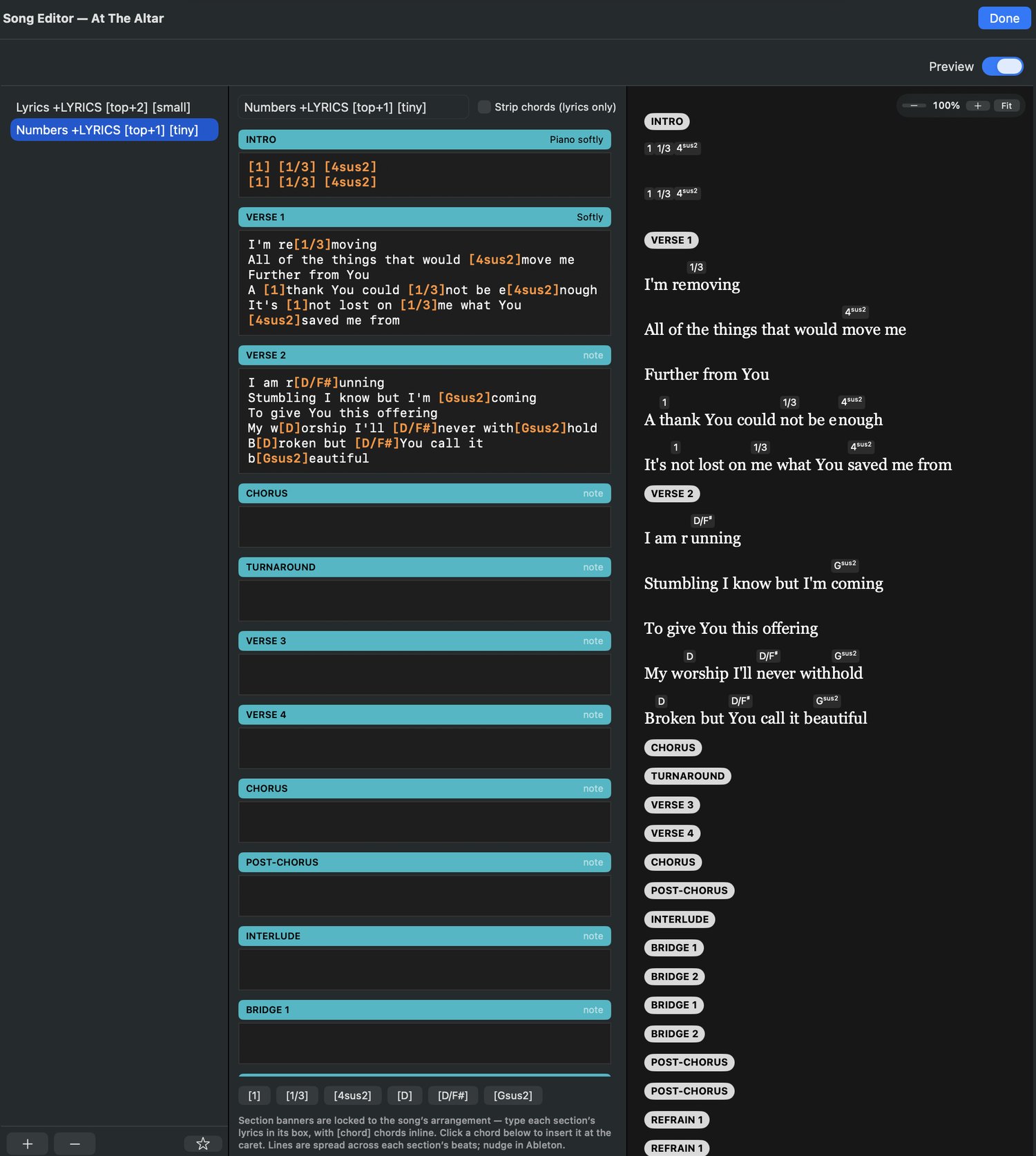
Section banners are locked to the arrangement. The preview is exactly what AbleSet will show.
Section banners come from the song's own locators. You can't add, remove, or reorder them, so the chorus can't end up under the bridge.
Type [G] or [1] where you want it. One lane strips them for the singers; another keeps them for the band.
You'll find out a line is too long for the screen while you're sitting at your desk, not while you're on stage looking at it.
You don't have to type them. Import pulls the words and chords straight out of a chart PDF or pasted text, reads MultiTracks Chart Pro (letters, Nashville numbers, Roman numerals, or solfege), SongSelect, and plain text charts, and places each chord above the syllable it lands on. On a MultiTracks download it snaps onto the sections the song already has, so the arrangement stays put and the chart just fills in the words. A review window opens first, fully editable, so nothing changes until you say so.
New in 1.1.2: the sharps and flats come in right. Chart Pro draws accidentals as little graphics instead of text, which is why they used to land wrong. Now they're read straight off the page, in sharp keys and flat keys, in every notation, and they hold up on the awkward ones like 7#9#5. Nothing is guessed: a chord it can't read cleanly gets flagged rather than faked.
And you can check it against the original. Turn on Original and the source PDF sits beside the parsed text, turning to the page each line came off as you move the cursor. Repeated choruses go to the right copy.
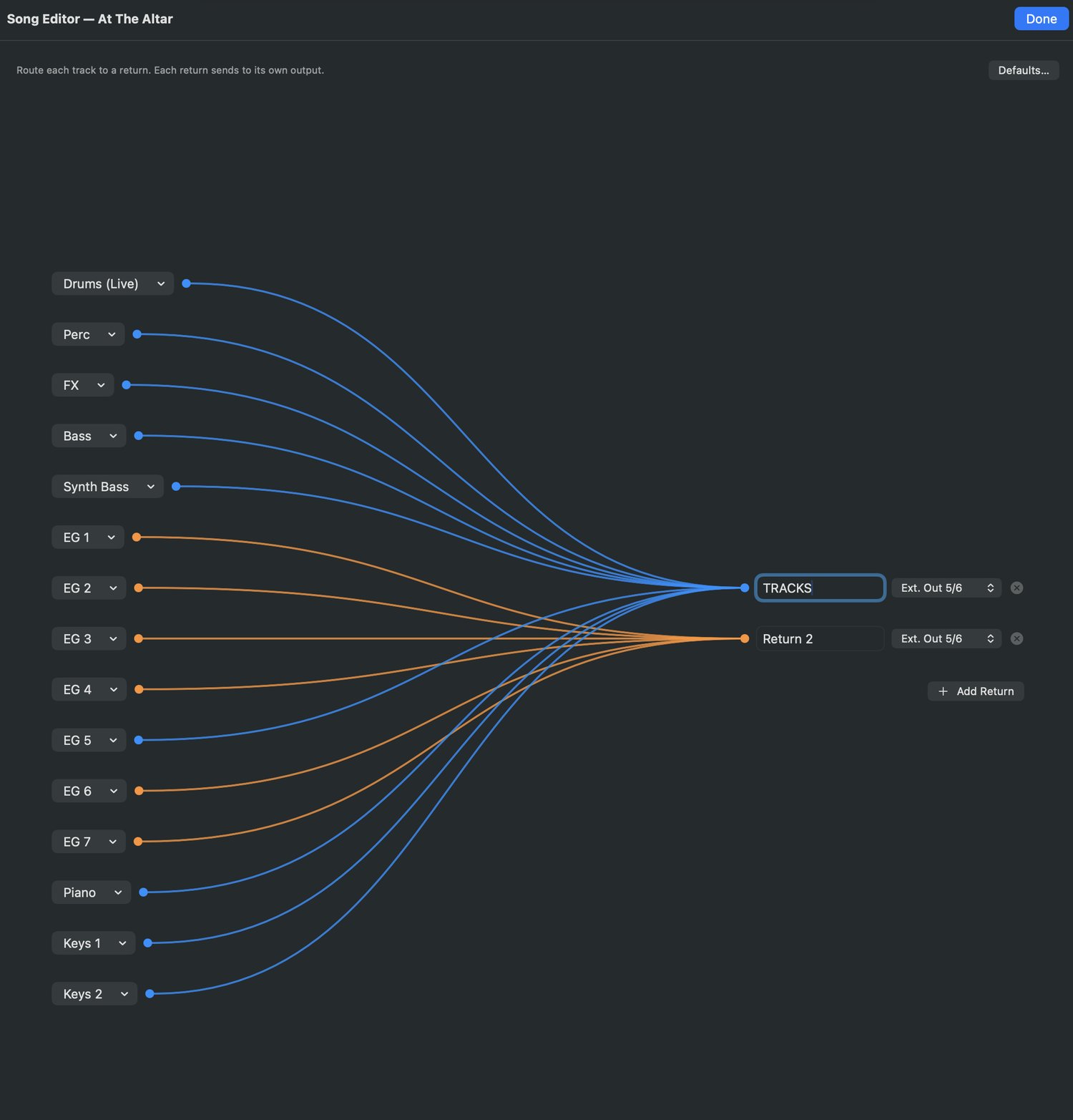
Tracks left, returns right, colored by destination
Rename them once, by rule. MultiTracks names stems the way MultiTracks names things. Set a rule: EG _ catches EG 1 through EG 7, and every song you ever convert comes out speaking your language.
Route them once, by rule. Send each stem to a return, each return to its own output. Set the default and every new song inherits it. Nothing gets orphaned.
Click, guide, and tracks each leave on their own outputs, so the click never hits the house.
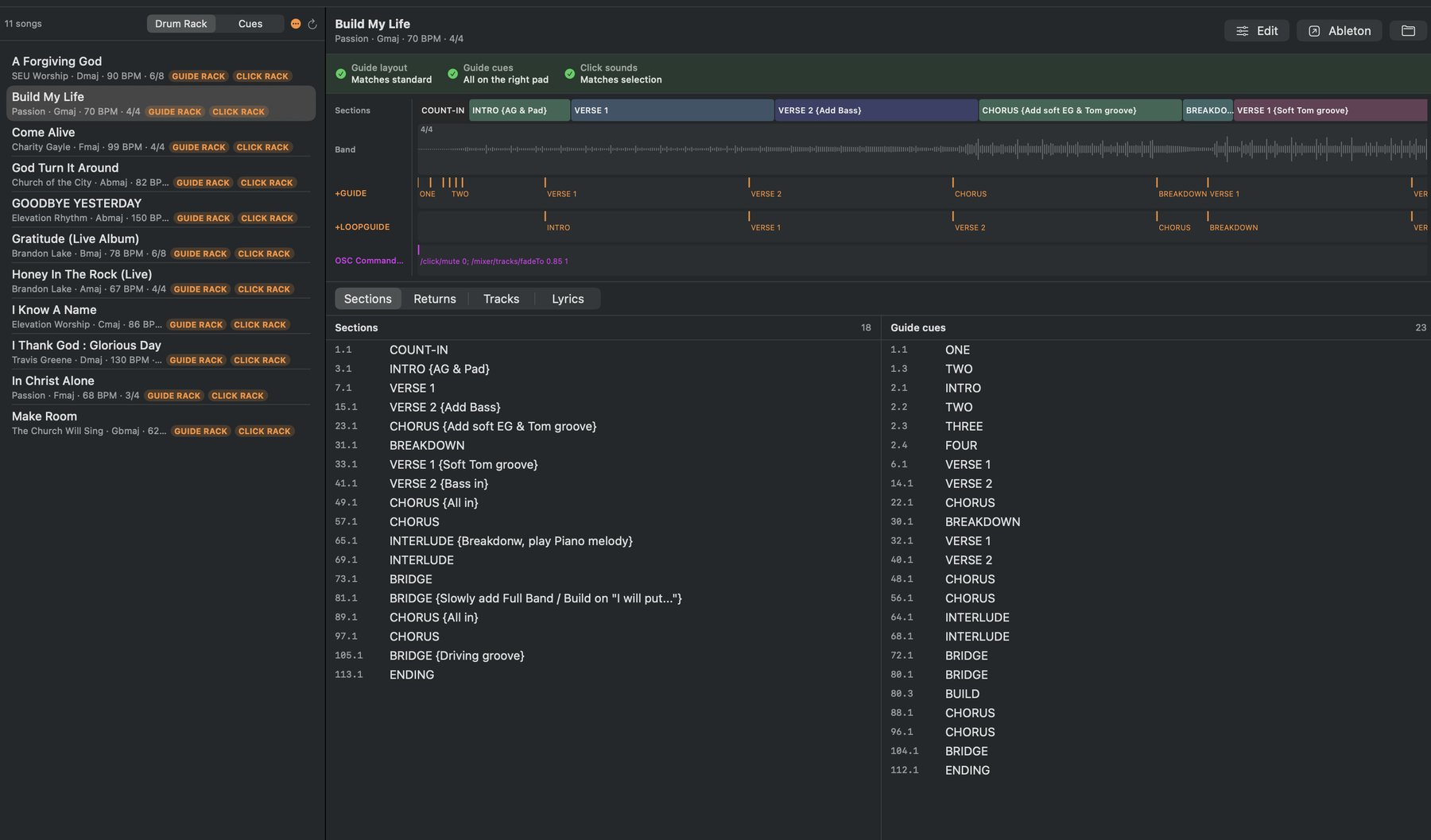
Every finished song in one place, with its sections, returns, and lyrics a click away
Direct it at a folder of finished songs and BuildAble reads every one, its sections, guide cues, click pads, and the families it was built with, without opening Ableton. A pinned arrangement map up top, and a pageable panel below for sections, a returns patchbay, track names, and lyrics.
Open any song back in the editor, fix what needs fixing, and Apply writes it straight back into the session, backed up first.
Change a voice or a click after you've built ten songs, and one command lines them all back up: guide layout, click sounds, and cue names across the whole library.
Fix a mis-named track or move a stem to another return on a song you already built, no re-converting. It writes back in place, the same way the converter routes.
A song saved by an older Ableton is flagged and held back from editing until you re-save it in Live 12, so one old file can't quietly break a mixed library.
The built-in lanes cover what most songs need. When they don't, 1.1 hands you the tools to build the rest yourself.
Add OSC or MIDI lanes of your own and place cues on them. Name a lane as OSC and it loads AbleSet's command catalog on its own, so the commands are there to choose rather than to remember.
Draw a CC envelope with as many breakpoints as you want, option-drag a segment to curve it, ramp over bars, and stack several controllers in one clip. It becomes real automation in the built session.
Open a finished song and the words and the per-line timing come back with it, so you keep editing instead of tapping the whole song out again.
If your rig already runs AbleSet Cues, let it do the speaking. Turn Cues mode on and the build keeps the template's +GUIDE track for the Cues plugin, speaks section count-ins from the locators, and turns your performance cues into a /cues/say lane.
Let AbleSet generate the voice, or hand it a WAV family and it speaks in the voice your band already knows. A library you built the old way converts over in one pass.
A version badge next to the title checks when you click it, and quietly in the background too. Signed updates install once you approve them, so you stop finding out months later that something got fixed.
Coming from 1.0.x, grab that one from the site by hand. The older builds have no updater in them. Everything after arrives on its own.
BuildAble makes the songs. StitchAble stitches them.
BuildAble turns a download into a finished song. StitchAble merges your finished songs into one gapless setlist. Running order, keys, tempo, meters, guide, click, returns, all reconciled.
They share one engine and one sound library: the guide voice and click sounds you set up in one are the same files the other one uses. And a song BuildAble writes is already named exactly the way StitchAble reads it.
A MultiTracks download → a finished Live 12 song.
Your finished songs → one gapless setlist.
One sound library. One engine. Two jobs.
one-time
Convert five songs free, real finished sessions with nothing held back. When it has earned its keep, the license key unlocks unlimited conversions in the app you already have. No subscription, free updates.
macOS 14.6+ · Ableton Live 12 · 5 activations · offline after activation
 BuildAble 12